Working with Permissions
Permissions determine who can view or modify your published data packages. When you first publish a data package with EDI, default access is strictly limited. Only the user who submits the package (designated as the Owner) and any subjects or principals explicitly listed in the metadata's access control list are granted permissions. All other users are denied access.
Steps
To create or manage resource permissions, follow these steps:
1. Sign-in
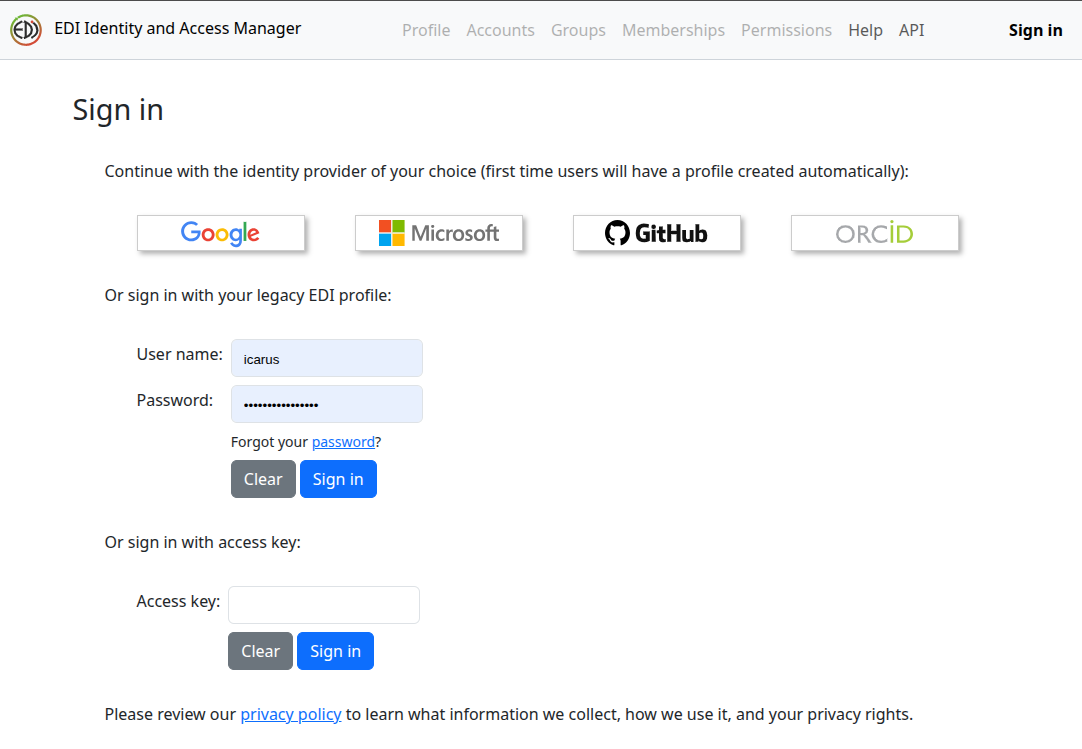
Sign-in to IAM with the identity provider of your choice.
2. Select Permissions
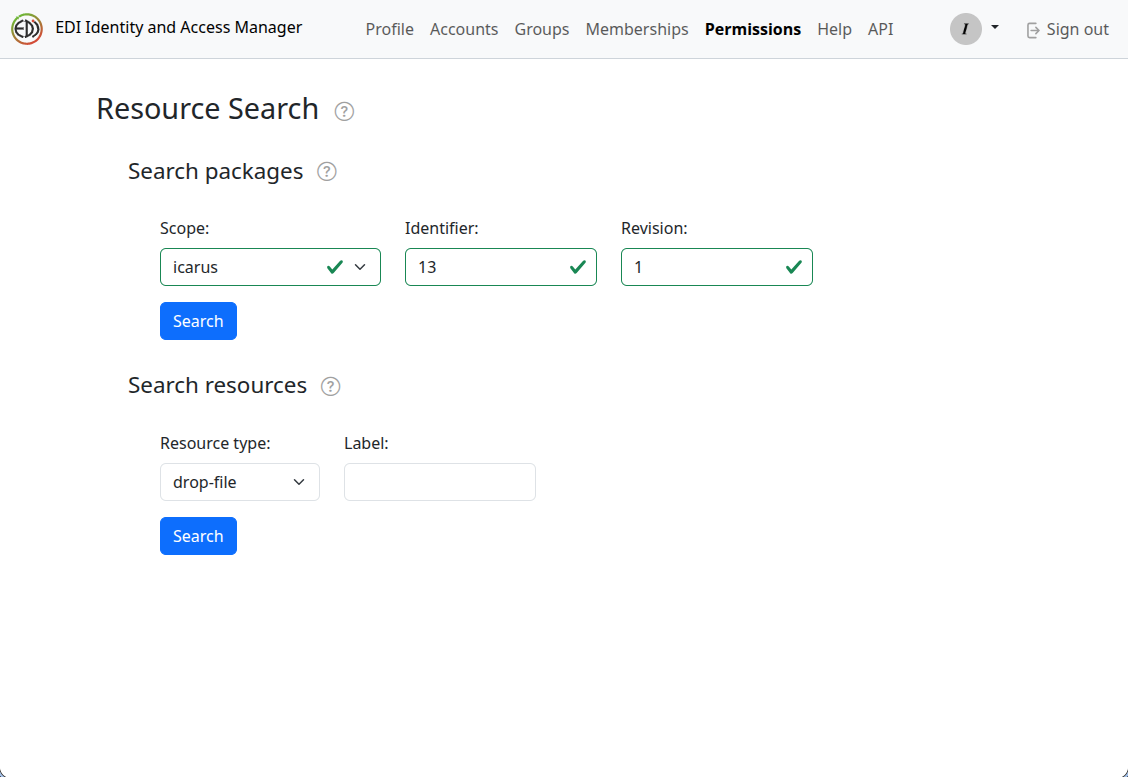
Once signed-in, select Permissions and enter the data package identifier you wish to work with into the "Search Packages" form, followed by selecting "Search." You can leave the "Identifier" or "Revision" fields empty in order to work with multiple data packages.
3. Expand Data Package Resource
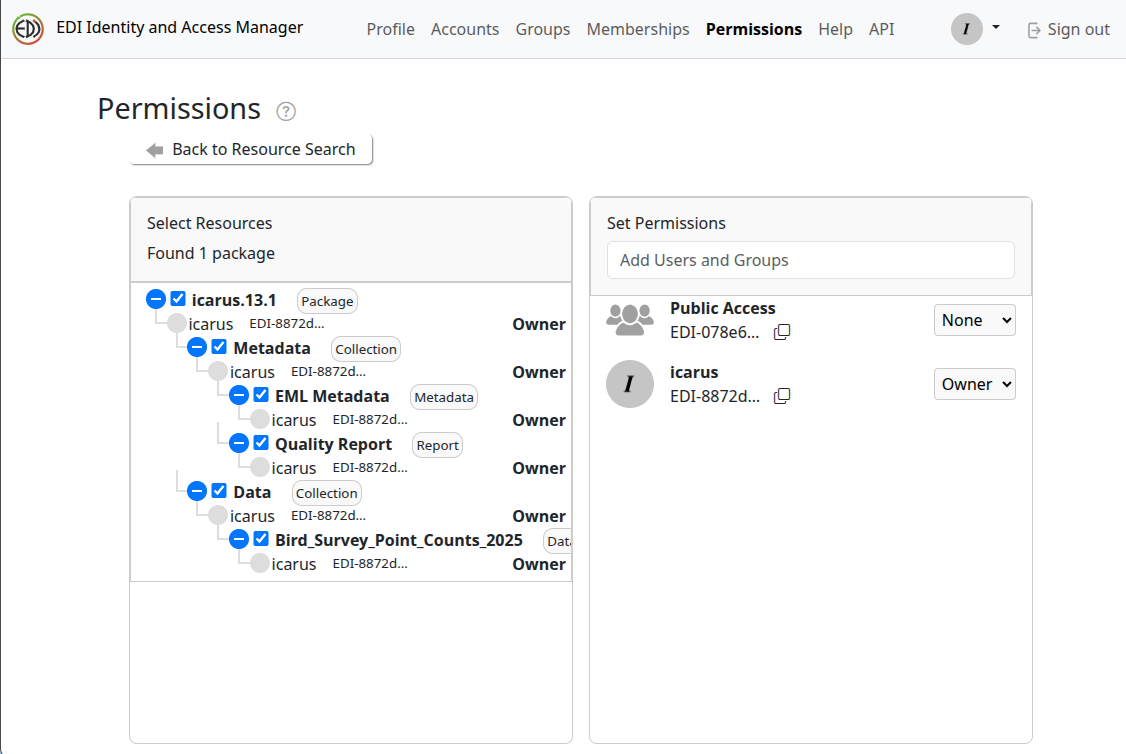
To inspect a data package's permissions, expand the data package entry in the "Select Resources" panel and check the top selection box to select all items. For example, expanded data package icarus.13.1 shows that Owner permissions are granted exclusively to "Icarus." Note that, while "Public Access" appears in the Set Permissions list, its permission level is set to None.
4. Add User to Data Package Permissions
Next, we will grant "msobol" Editor access for this package.
Type "msobol" in the "Add Users and Groups" search field of the "Set Permissions" panel. This will add "msobol" to the permissions list as a Reader. Next, select the drop-down menu where Reader is displayed and select Editor. This will update "msobol" to an Editor.
Notes:
- The "Add Users and Groups" search field allows you to search for a user or group by name, email or EDI identifier.
- The profiles shown in the "Select Resources" panel on the left are those specifically set for a given resource, while the list shown in the "Set Permissions" panel on the right is a combined list for all the selected resources.
5. Remove User from Data Package Permissions
To remove "msobol" (or any other user or group), select the resources for which the user or group should be removed in the "Select Resources" panel, then select the permissions drop-down menu next to their name in the "Set Permissions" panel and select None.