How to Create API Access Keys
Steps
API Access Keys are simple to create and require just a few steps:
1. Sign-in
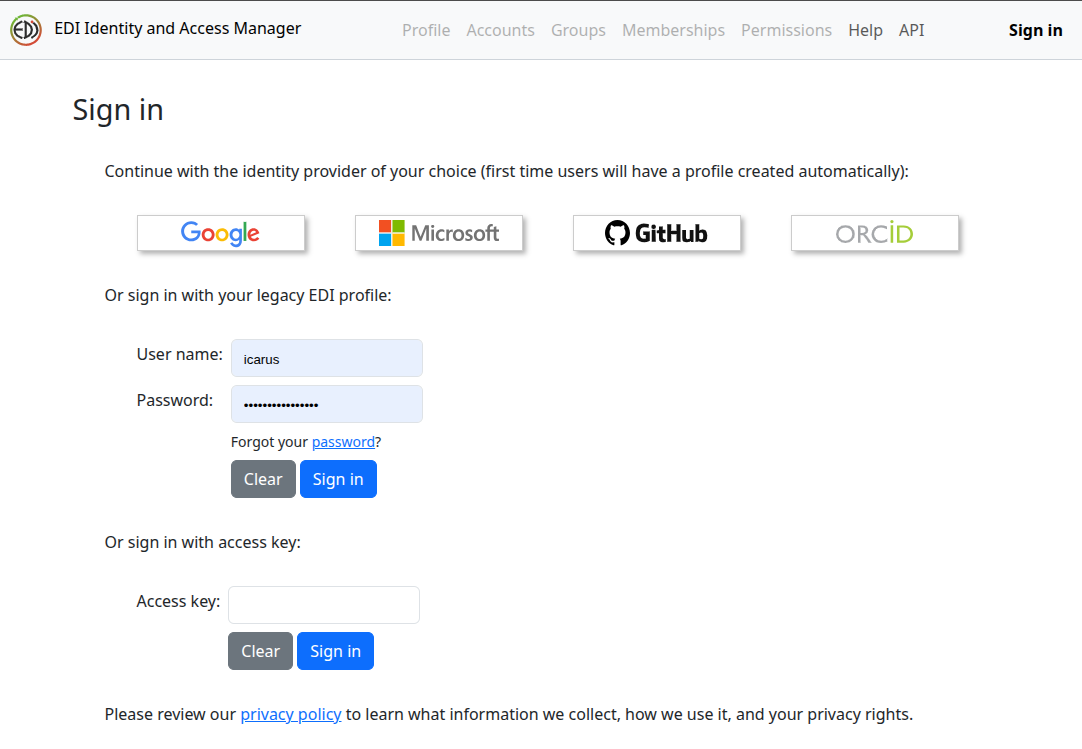
Sign-in to IAM with the identity provider of your choice.
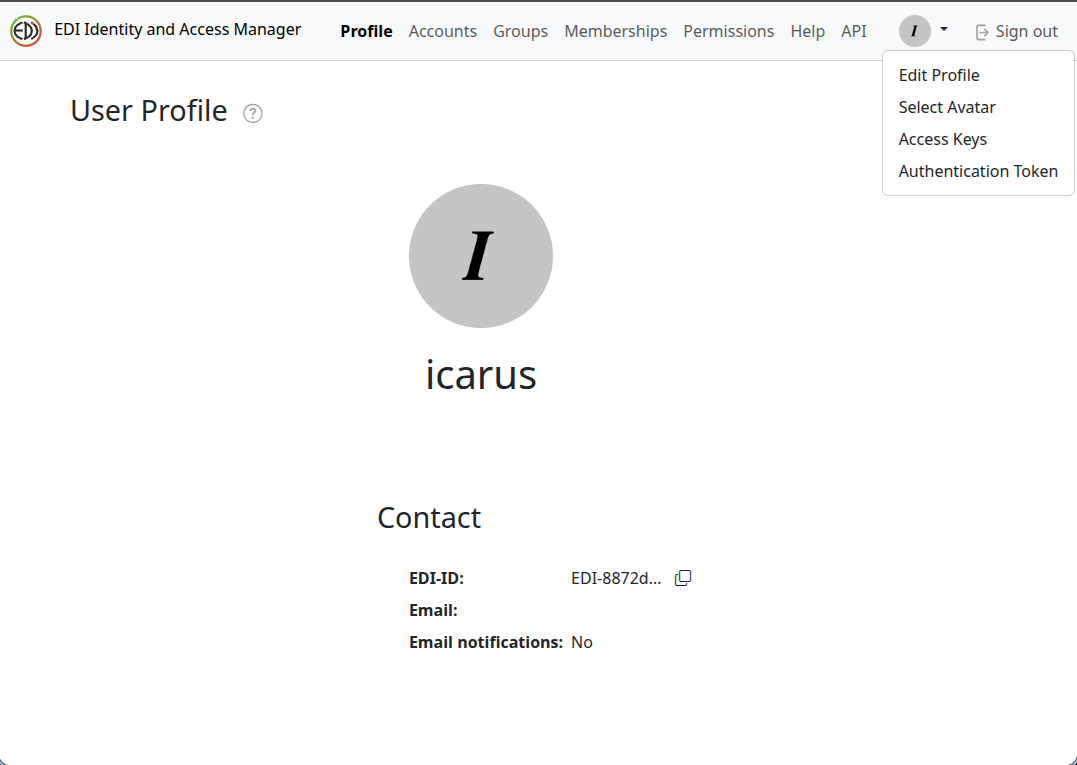
2. Select Profile menu > "Access Keys"
Once signed-in, select the Profile menu (the avatar button top-right), then select "Access Keys".
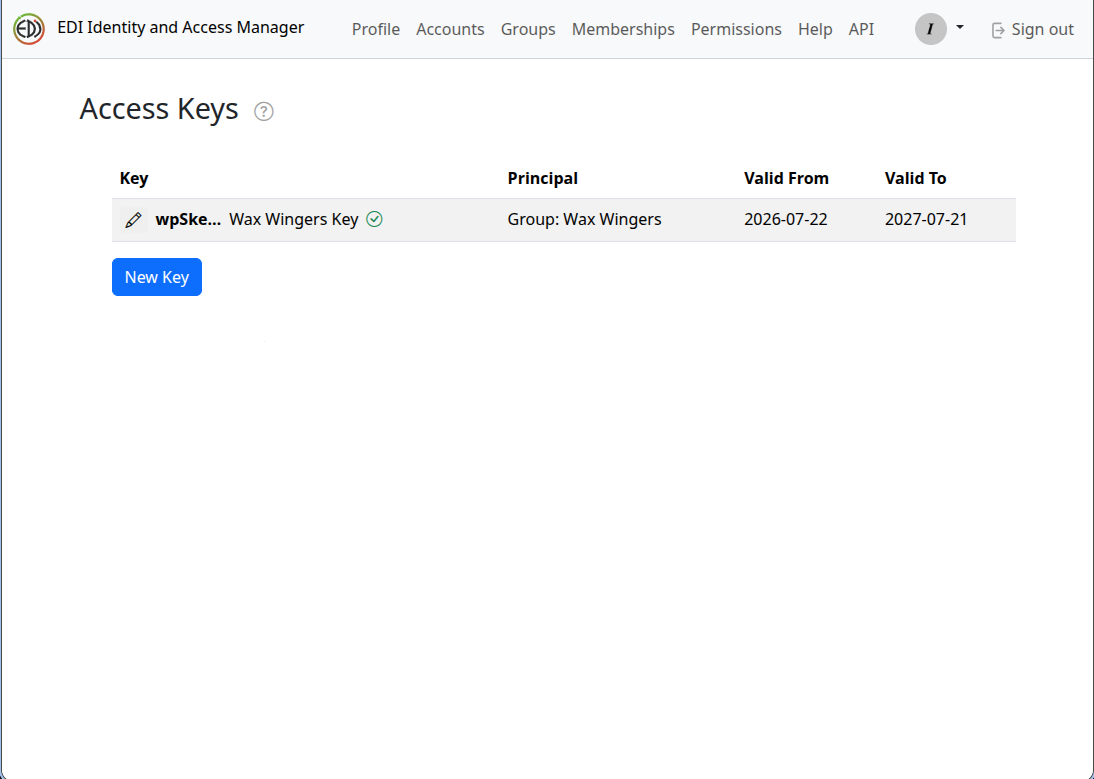
3. Select "New Key"
Your Access Keys page will display any access keys you have already created or an empty page with a "New Key" button. Select "New Key".
4. Enter Key Information
Selecting "New Key" opens the "Create a new access key" pop-up window:
- Enter a descriptive key name in the field provided. While key names can be any text, using the name of the associated project or data package can help keep your keys organized.
- In the "Principal" drop-down, select either your Profile or a Group (if one exists).
- Assigning an access key to your Profile grants full access equal to logging in directly with your identity provider. Assigning an access key to a Group restricts its access strictly to the data packages explicitly permitted for that group.
- "Duration" sets the valid lifespan of the access key. While access keys cannot be set to expire indefinitely, you can configure them to remain active for multiple years. You can keep the default 1-year lifespan or adjust it to a timeframe that suits your needs.
- Once you are comfortable with the access key settings, select "Add." This will generate a new access key for you, along with the secret key identifier, which will be displayed in a follow-on pop-up window.
The "Save your new key" pop-up will display your secret key identifier. Copy the identifier—using either the copy button () or by highlighting the text and using your browser copy command—and store it in a secure location. This is the only time your complete secret key identifer will be shown.
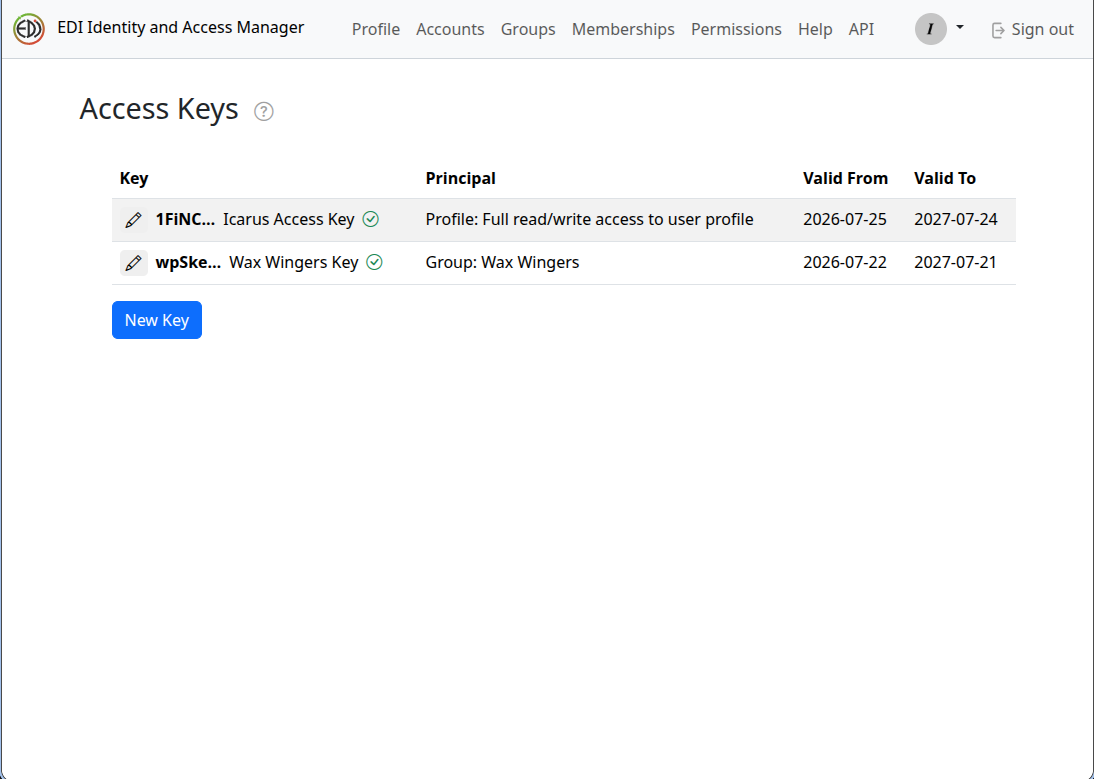
Once you have securely saved your secret key identifier select "I have saved my key". Your new key will be displayed, along with any other keys you have previously created.
Editing your access key
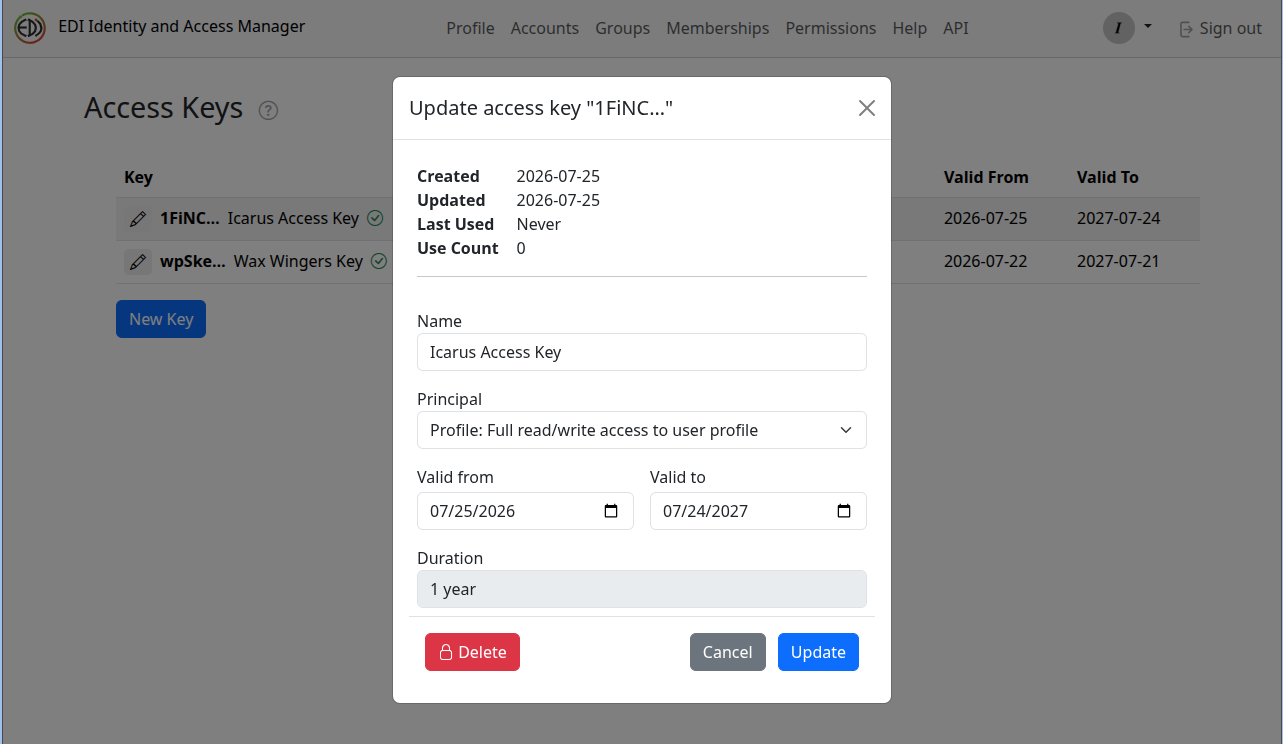
Any previously created access key may be edited or deleted by selecting the edit button () for the key you would like modify. Editing the access key will also display basic information, including creation and update dates, when the access key was last used, and how many times it has been used.
To save any edits, select "Update." You may also delete your access key by selecting "Delete." Deleting an access key is permanent, so please be certain.